Deploy Approval
Overview
Deploy Approval is a control plane feature built on top of the Witboost Workflow Engine that introduces an approval gate before a deploy request can be executed. When active, data teams cannot deploy directly: they must first submit a deploy request that waits for a designated approver to review and either approve or reject it.
This allows platform teams to enforce governance policies for sensitive environments — for example, requiring an explicit sign-off from data product owners, domain managers, or holders of specific RBAC roles before any production deployment takes place.
The feature is fully configurable: which entity types and environments are subject to the gate, and who is notified as an approver, are both controlled by the platform team through the administration panel.
Prerequisites
To set up and use Deploy Approval, the platform team must:
- Grant the required permissions. Access to the Workflows administration page requires one of the following RBAC permissions:
workflow-engine.definition.view— to view the workflow definitionworkflow-engine.definition.manage— to view and edit the workflow definition
workflow-engine.instance.view— to view active workflow instances for an active workflow definition
These permissions are typically granted to platform administrators. Data team members do not have them by default. For the full list of Workflow Engine permissions, see Workflow Engine permissions.
- Enable the feature from the Administration panel. Navigate to Administration panel → Workflows and activate the Deploy Approval workflow. From there you can also configure the activation scope (entity types and environments), inspect active workflow instances, and edit the workflow definition YAML.
Lifecycle Manager Team Role
The Lifecycle Manager is a Team Role specifically designed for deploy approval workflows. When assigned, Lifecycle Managers receive workflow notifications and are responsible for approving or rejecting deploy requests, allowing the Project Owner to delegate this responsibility to dedicated team members.
To use the Lifecycle Manager as an approver in your workflow definition, configure the team-role strategy with LIFECYCLE_MANAGER as the recipient:
approvers:
  - strategy: team-role
    recipient: LIFECYCLE_MANAGER
When no Lifecycle Manager is assigned to a project, the workflow falls back to the Project Owner(s). For more information on configuring the Lifecycle Manager Team Role, see Team Roles configuration.
How It Works
When Deploy Approval is active for a given system type and environment, the deploy flow changes as follows:
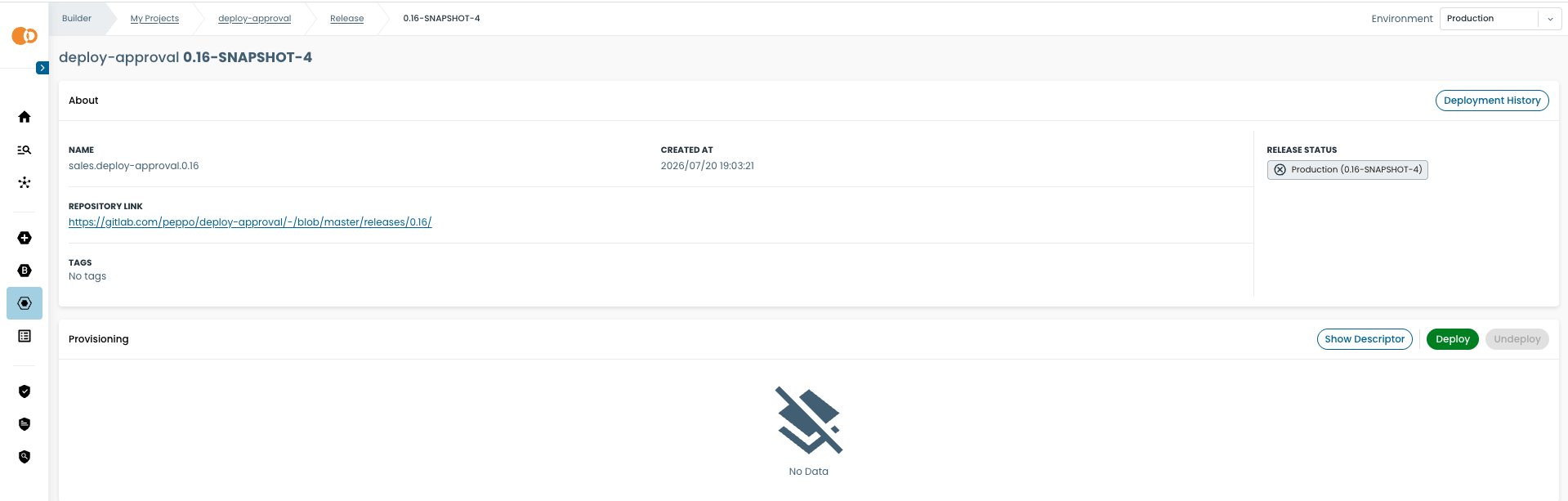
- Request: the data team clicks Request Deploy on the release page instead of the standard Deploy button.
- Notification: the Workflow Engine triggers the approval workflow, resolving the configured approvers and sending them a notification.
- Waiting: the deploy button shows Waiting for Approval and is disabled. The data team cannot deploy until the workflow completes.
- Approver responds:
- Approved → the deploy button becomes available. The data team clicks Deploy to proceed with the actual deployment.
- Rejected → the data team can submit a new deploy request.
If the current system type or target environment is outside the configured activation scope, the standard Deploy button is shown and no approval is required.
Approval scope: releases, not systems
The approval gate is attached to a release, not to the system as a whole. Specifically:
- Each distinct release version (e.g.
v1.0.0,v1.1.0) requires its own approval request. - Snapshots of the same version share the same approval. If you obtain approval on
v1.0.0-SNAPSHOT-1and then publishv1.0.0-SNAPSHOT-2, the approval carries over — you do not need to request it again. - Creating a new version resets the approval. As soon as a new release is cut (e.g.
v1.0.1,v1.1.0, orv1.1.0-SNAPSHOT-1), it counts as a new release and a new approval request must be submitted.
| Scenario | Approval required? |
|---|---|
First deploy request for v1.0.0 | Yes |
New snapshot v1.0.0-SNAPSHOT-2 after approval on v1.0.0-SNAPSHOT-1 | No — approval carries over |
Patch release v1.0.1 after approval on v1.0.0 | Yes — new approval required |
New release v1.1.0 after approval on v1.0.0 | Yes — new approval required |
New snapshot v1.1.0-SNAPSHOT-1 after approval on v1.0.0 | Yes — new approval required |
A step by step example
You request the deploy for a specific release
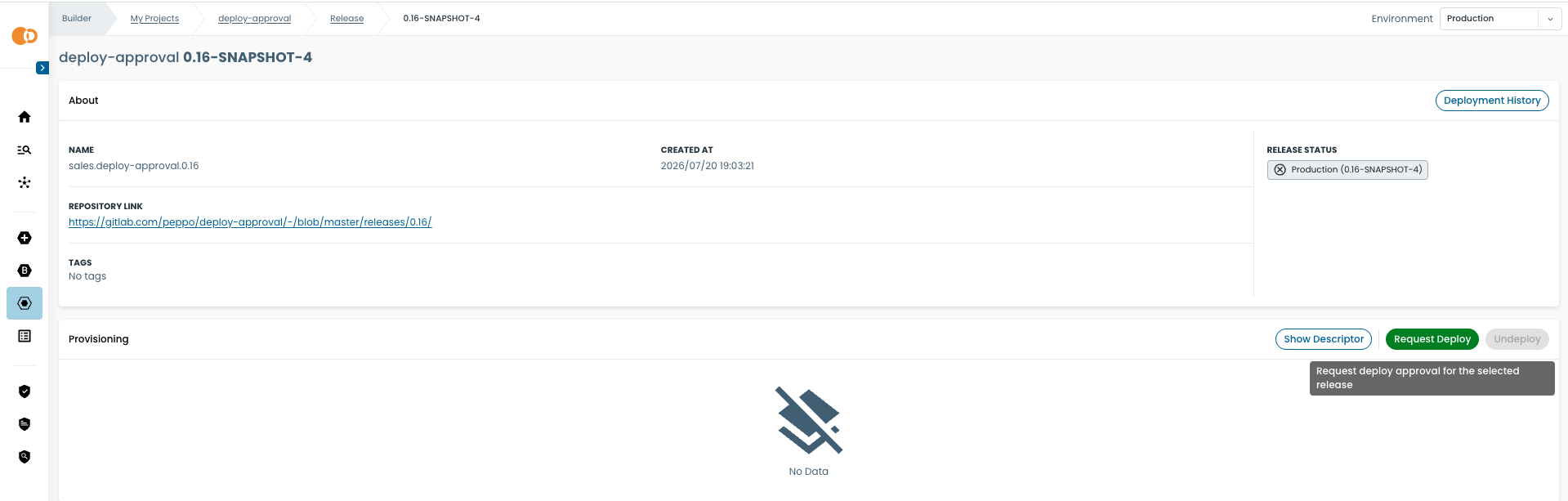
Your button turns into waiting for approval
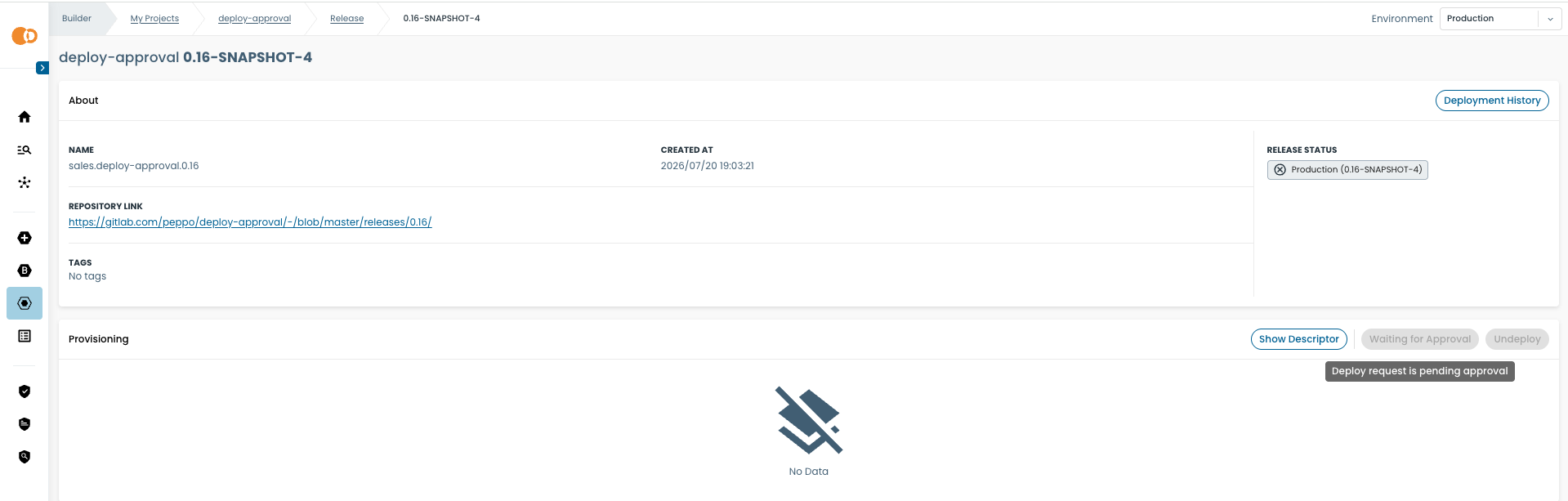
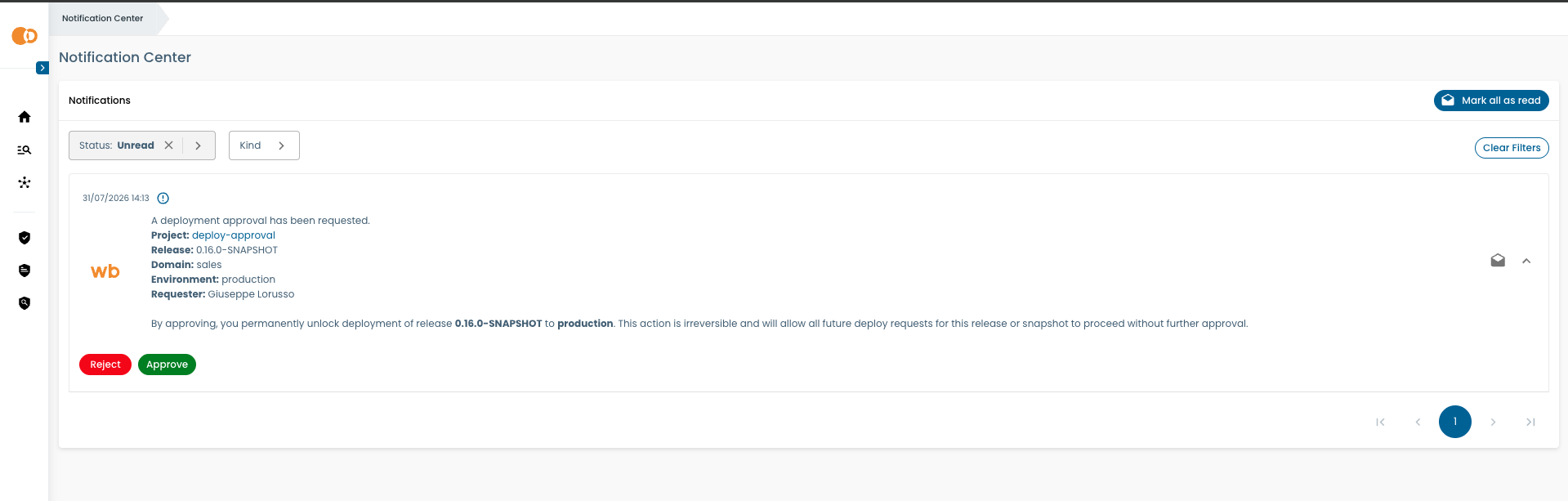
The approver receives a notification to approve / reject your request
After approval / rejection, you receive this notification back
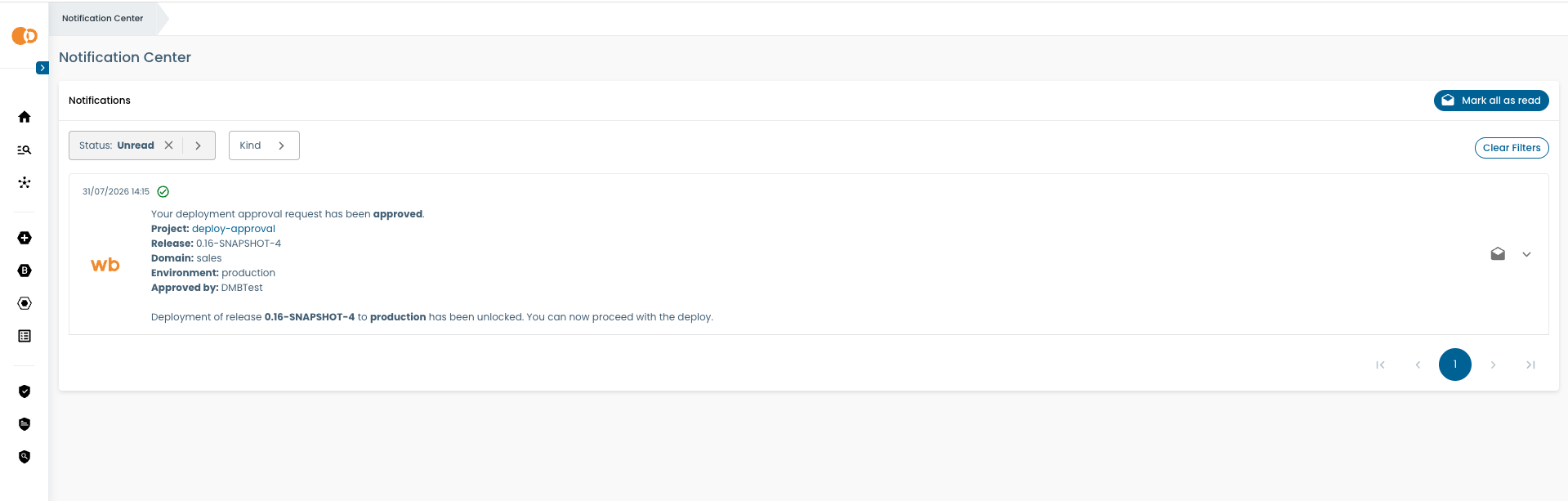
Your now see the deploy button to actually submit a deployment for the release
Default Workflow Definition
A default deploy approval workflow definition is provided out of the box. This definition:
- Applies to all entity types and all environments (no scope restriction by default)
- Sends the approval notification to the data product owner — specifically, the user assigned to the entity's
OWNERteam role - Follows a first response wins policy: all resolved approvers are notified simultaneously, and the first to respond (approve or reject) resolves the workflow for all recipients
The default workflow definition YAML:
schema: workflow.definition/v1
stages:
  - name: DEPLOY_REQUESTED
    initial: true
  - name: DEPLOY_APPROVED
    terminal: success
  - name: REJECTED
    terminal: failure
transitions:
  - from: null
    to: DEPLOY_REQUESTED
    trigger:
      type: EVENT
      eventType: builder.release-deploy-requested
      config:
        entityUrnField: urn
        entityScopeFields:
          - isSnapshot
          - environment
          - systemType
    actions:
      - type: ASK_APPROVAL
        config:
          alias: deploy-approval
          approvers:
            - strategy: team-role
              recipient: OWNER
  - from: DEPLOY_REQUESTED
    to: DEPLOY_APPROVED
    trigger:
      type: APPROVAL_RESPONSE
      config:
        alias: deploy-approval
        outcome: APPROVE
  - from: DEPLOY_REQUESTED
    to: REJECTED
    trigger:
      type: APPROVAL_RESPONSE
      config:
        alias: deploy-approval
        outcome: REJECT
Customizing the Approvers
The workflow definition is managed through the Administration panel → Workflows page. From there, platform teams can enable / disable the entire feature, change the feature perimeter (including or excluding a new system type or environment from it), and view and edit the YAML definition.
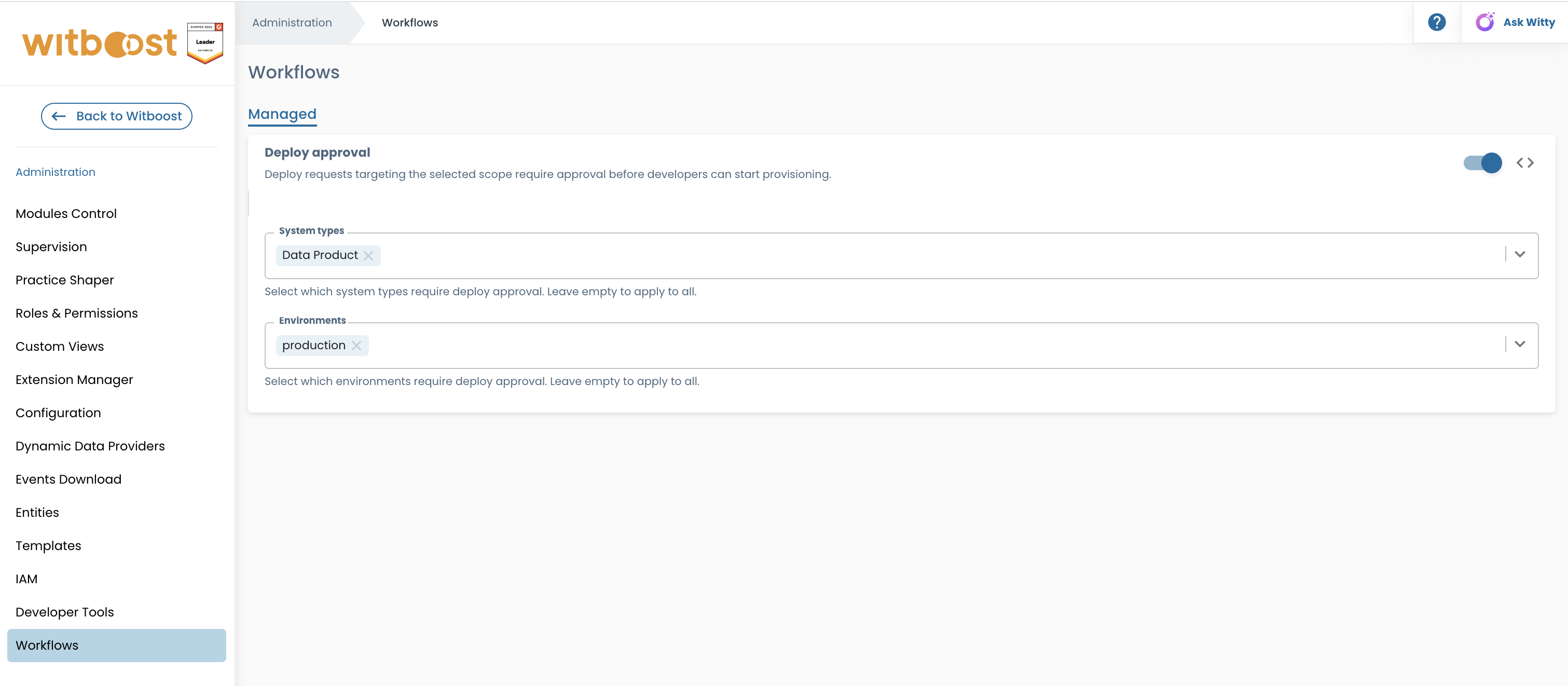
For the required permissions to access this page, see Prerequisites.
Managing Active Workflow Instances
When the Deploy Approval workflow is active, users with workflow-engine.instance.view can open View active instances from the Workflows administration page. This opens a table of active deploy approval workflow instances for the selected workflow definition. From there, it's possible to select one or more active instances and terminate them. Terminating an instance stops the pending workflow, interrupts the normal approval flow, and cannot be undone. If the deployment still requires approval, the data team must submit a new deploy request.
What Can Be Customized
The workflow definition structure (stages, transitions, triggers) is fixed and managed internally by Witboost. The only part of the definition that platform teams can customize is the approvers list inside the ASK_APPROVAL action. This controls who receives the approval notification when a deploy request is submitted.
In the workflow YAML, the approvers list is located here:
    actions:
      - type: ASK_APPROVAL
        config:
          alias: deploy-approval
          approvers:              # ← this is the customizable part
            - strategy: team-role
              recipient: OWNER
approvers is a non-empty list of approver definitions. Each entry is resolved independently, and all resulting user sets are merged and deduplicated before notifications are sent. The first approver to respond (approve or reject) resolves the workflow for all recipients — their sibling notifications are automatically dismissed.
Approver Resolution Strategies
team-role Strategy
Resolves approvers using the entity's team role assignments. Use this when you want to route approval to whoever holds a specific organizational responsibility for the entity the release belongs to.
approvers:
  - strategy: team-role
    recipient: OWNER
The recipient value must be the identifier of a configured team role. For the full list of available team roles and their identifiers, refer to Available Team Roles.
If no team role assignment is found for the entity, Witboost falls back to the project's owner.
rbac-role Strategy
Resolves approvers by RBAC role, using the role assignments configured in the Witboost RBAC system. This strategy supports an optional scope filter that controls which role assignments are considered based on their assigned scope.
approvers:
  - strategy: rbac-role
    recipient: head-of-data # RBAC role ID
    scope: domain # optional scope filter
The recipient value is the ID of an RBAC role configured in your Witboost instance. For more information on roles and role IDs, refer to Roles.
Without scope: all users who hold the specified RBAC role are returned, regardless of the scope of their role assignment.
Omitting scope can notify a much larger set of users than intended. For example, suppose the RBAC role head-of-domain has one holder per domain — Alice for domain A, Bob for domain B, and Carol for domain C. If you configure the approver without a scope:
approvers:
  - strategy: rbac-role
    recipient: head-of-domain
Then every deploy request — even one for a system in domain A — will notify Alice, Bob, and Carol simultaneously, because all holders of the role are returned regardless of which domain they govern.
To restrict notifications to only the head-of-domain responsible for the deploying entity's domain, add a scope:
approvers:
  - strategy: rbac-role
    recipient: head-of-domain
    scope: domain
This resolves only the role holder whose assignment is scoped to the entity's domain — so a deploy in domain A notifies only Alice.
With scope: when you assign an RBAC role to a user in the Admin panel, you choose whether that assignment applies globally or only within a specific context — for example, "only for the Sales domain" or "only for Data Products". The scope field tells Witboost which of those assignment contexts to consider when a release is deployed. Witboost looks at the system the release belongs to and notifies only users whose role assignment matches that system's context.
Available scope values:
| Value | What it matches | Example |
|---|---|---|
entity | Users assigned the role specifically for the system the release belongs to | Alice has head-of-data assigned for the Analytics data product → notified only when a release of that data product deploys |
domain | Users assigned the role for that system's domain | Alice has head-of-data assigned for the Sales domain → notified for any release deploying within Sales |
systemType | Users assigned the role for that system's type | Alice has head-of-data assigned for Data Products (as system type) → notified for any Data Product release |
wildcard | Users assigned the role globally (no specific context) | Alice has head-of-data with a global/wildcard assignment → always notified |
| (omitted) | All of the above | All holders of the role are notified, regardless of how their assignment is scoped |
Multiple scope dimensions can be combined using the anyOf form:
scope:
  anyOf: [domain, wildcard]
This notifies users whose assignment matches any of the listed dimensions — in this example, both domain-scoped and globally-assigned holders.
Fallback to Project Owner
The same workflow definition applies to all systems in scope, regardless of whether each individual system has Team Roles enabled. If you use the team-role strategy with OWNER as the recipient:
approvers:
  - strategy: team-role
    recipient: OWNER
Witboost resolves the approver differently depending on whether the specific system being deployed has been onboarded in Team Roles:
- Team Roles is active for that system → the user assigned as Owner in the Team Roles panel is notified.
- Team Roles is not active for that system → Witboost falls back to the project's owner.
This makes the team-role + OWNER combination a safe default: it works across all systems regardless of their Team Roles setup, without requiring any changes to the workflow definition.
Combining Multiple Approver Entries
Multiple entries in the approvers list are resolved independently and merged:
approvers:
  - strategy: team-role
    recipient: OWNER
  - strategy: rbac-role
    recipient: head-of-data
    scope: domain
Both the entity owner and all domain-scoped head-of-data role holders receive the notification. If any user appears in both resolved sets, they receive a single notification.
Configuring the Activation Scope
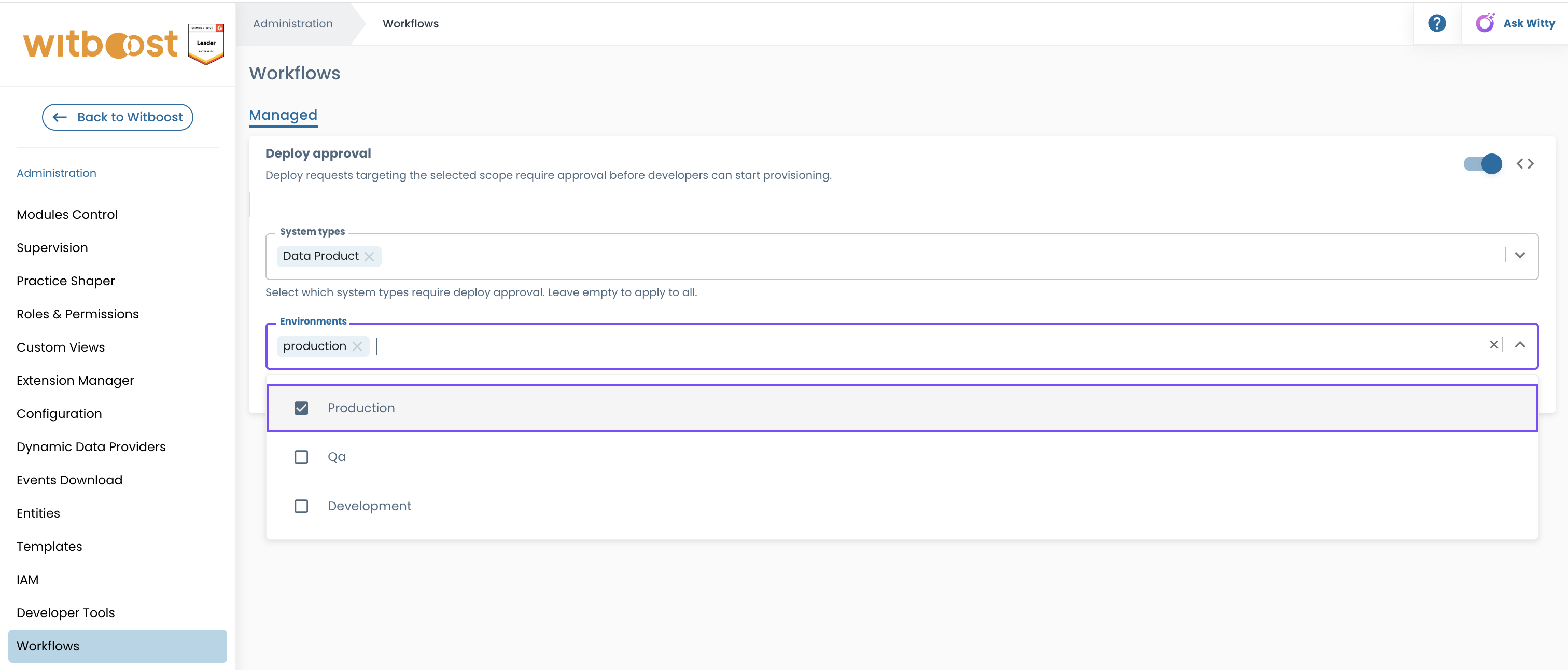
The activation scope determines which entity types and environments are subject to the approval gate. It is managed through the Administration panel → Configuration → Workflows page.
Scope Dimensions
The activation scope has two independent dimensions:
| Dimension | Values | Semantics |
|---|---|---|
| Entity types | List of entity type names (e.g., data-product, ml-project) | Only deploy requests for these entity types trigger the workflow |
| Environments | List of environment names (e.g., production, staging) | Only deploy requests targeting these environments trigger the workflow |
Semantics:
- Each dimension is an allowlist: entities or environments not in the list bypass the approval gate entirely.
- A dimension that is empty or not configured applies to all values (no restriction on that dimension).
- Both dimensions are combined with AND logic: a deploy request must match both constraints to trigger the approval workflow.
Examples:
| Entity types | Environments | Applies to |
|---|---|---|
| (empty) | (empty) | All entity types in all environments |
data-product | (empty) | Data Products only, all environments |
| (empty) | production | All entity types, production only |
data-product, ml-project | production, staging | Data Products or ML Projects deploying to production or staging |
Deactivating the Feature with In-Flight Workflows
When you deactivate the feature or narrow the activation scope (remove entity types or environments), any active approval requests (workflows currently waiting for approver response) for the affected entities are impacted:
- The approval gate is silently lifted for those entities.
- Users who were waiting for approval can immediately deploy without it.
- Pending notifications sent to approvers are not automatically dismissed.
To guard against accidental scope changes, Witboost performs an impact analysis before applying any scope-narrowing change. A confirmation dialog shows the number of in-flight workflows that would be affected:
"This change will affect N entity/entities with an active workflow instance. Their pending workflows will be cancelled. Affected entities will need to go through the workflow again if still applicable."
You must explicitly confirm to proceed.
Narrowing the activation scope or deactivating the feature removes the approval gate from in-flight requests. This is a security posture change: affected entities regain unrestricted deploy access without the intended approval step. Review the count of in-flight workflows before confirming.
Examples
Approver Configuration Examples
These examples show how to configure the approvers list with different strategies and scope configurations. All examples assume the release being deployed belongs to a system of type bi-projects in the Sales domain, and the RBAC role being queried is head-of-data with the following assignments configured in the Admin panel:
| User | Assigned for |
|---|---|
| Alice | Sales domain |
| Bob | Marketing domain |
| Charlie | All (global / wildcard) |
| Dave | bi-projects system type |
Only the head-of-data for the Sales domain (Alice)
approvers:
  - strategy: rbac-role
    recipient: head-of-data
    scope: domain
Witboost looks at the domain of the deploying system (Sales) and notifies only users assigned as head-of-data for that domain.
→ Notified: Alice. Bob, Charlie, and Dave are excluded.
Head-of-data for the Sales domain plus global holders (Alice and Charlie)
approvers:
  - strategy: rbac-role
    recipient: head-of-data
    scope:
      anyOf: [domain, wildcard]
Witboost notifies users assigned for the Sales domain or globally.
→ Notified: Alice (Sales domain) and Charlie (global). Bob and Dave are excluded.
Head-of-data for the bi-projects system type (Dave)
approvers:
  - strategy: rbac-role
    recipient: head-of-data
    scope: systemType
Witboost looks at the system type of the deploying system (bi-projects) and notifies only users assigned as head-of-data for that system type.
→ Notified: Dave. Alice, Bob, and Charlie are excluded.
Head-of-data for the Sales domain and for the bi-projects system type (Alice and Dave)
approvers:
  - strategy: rbac-role
    recipient: head-of-data
    scope:
      anyOf: [domain, systemType]
→ Notified: Alice (Sales domain) and Dave (bi-projects system type). Bob and Charlie are excluded.
Combined team-role owner and domain-scoped rbac-role
approvers:
  - strategy: team-role
    recipient: OWNER
  - strategy: rbac-role
    recipient: head-of-data
    scope:
      anyOf: [domain, wildcard]
Both the data product owner (from Team Roles) and the domain or global head-of-data holders are notified simultaneously. The first to respond (approve or reject) resolves the workflow for all recipients.