LLM Engine
The LLM Engine is a microservice that allows the governance team to define policies using natural language, without writing any code. When a policy with the LLM engine is evaluated, the resource's descriptor and the natural language policy text are sent to a Large Language Model (LLM), which determines whether the resource is compliant.
If the descriptor satisfies what the governance team expressed in natural language, the engine returns a positive result. Otherwise, it highlights what is not compliant, returning errors and suggestions that are displayed in the Witboost UI.
LLM policies are extremely powerful because they allow you to define complex compliance checks in plain language. However, given the non-deterministic nature of LLMs, always try to be as specific and concise as possible when writing the policy content, and test your policies thoroughly before enabling them in production.
How It Works
When a policy with the LLM engine is triggered, the Witboost Computational Governance sends the resource descriptor and the policy content to the LLM Engine microservice. The engine then:
- Receives the resource descriptor (a YAML document) along with the natural language policy text.
- Sends both to a configured LLM, instructing it to evaluate whether the descriptor satisfies the policy.
- Returns a structured result indicating whether the policy is satisfied, along with any errors or suggestions.
The evaluation result is displayed in the Witboost UI just like any other policy evaluation. A satisfied policy shows a positive outcome, while a non-satisfied policy lists the specific errors and, when available, suggestions on how to fix them.
The following are examples of evaluation results of an LLM policy. This policy requires that the data product domain equals "finance" to be satisfied.
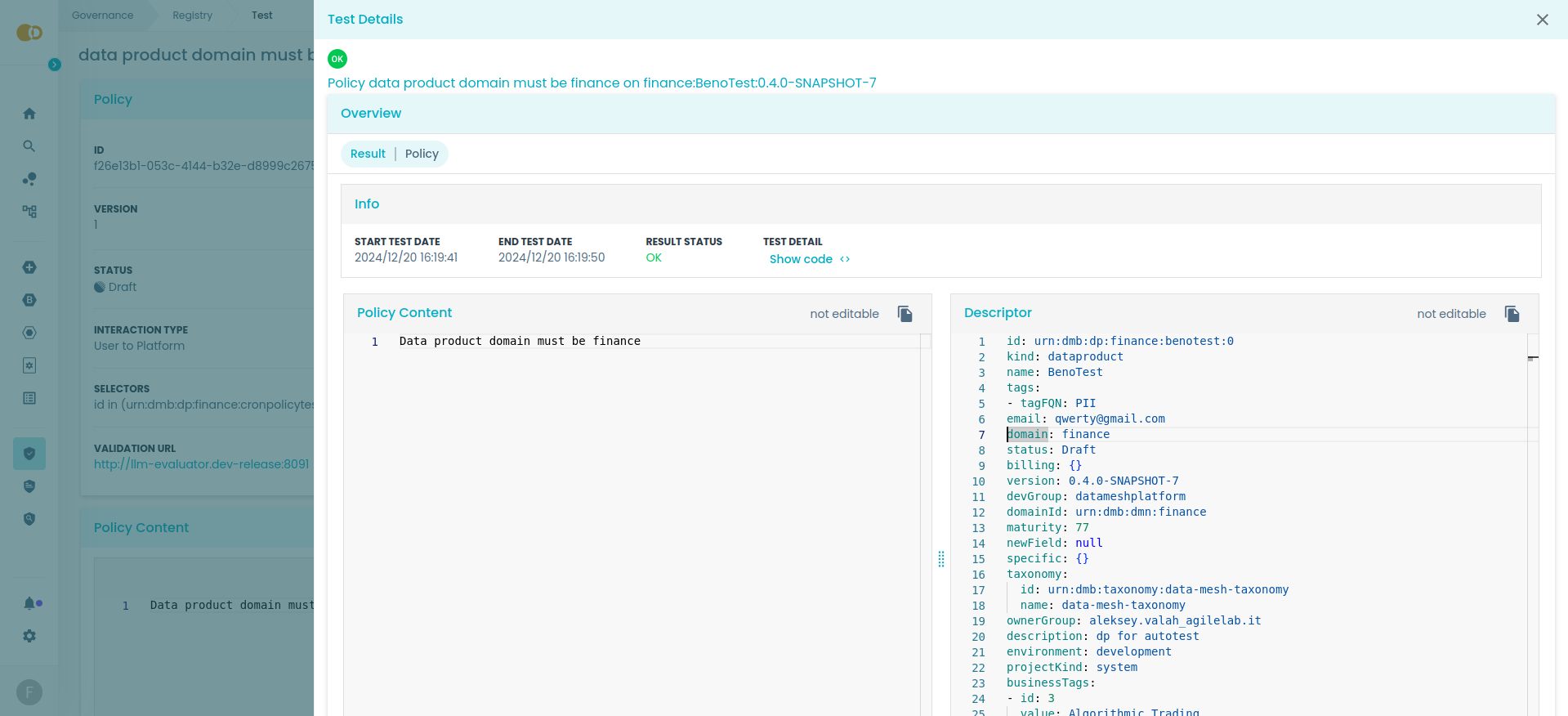
The data product domain is set to "finance", satisfying this policy.
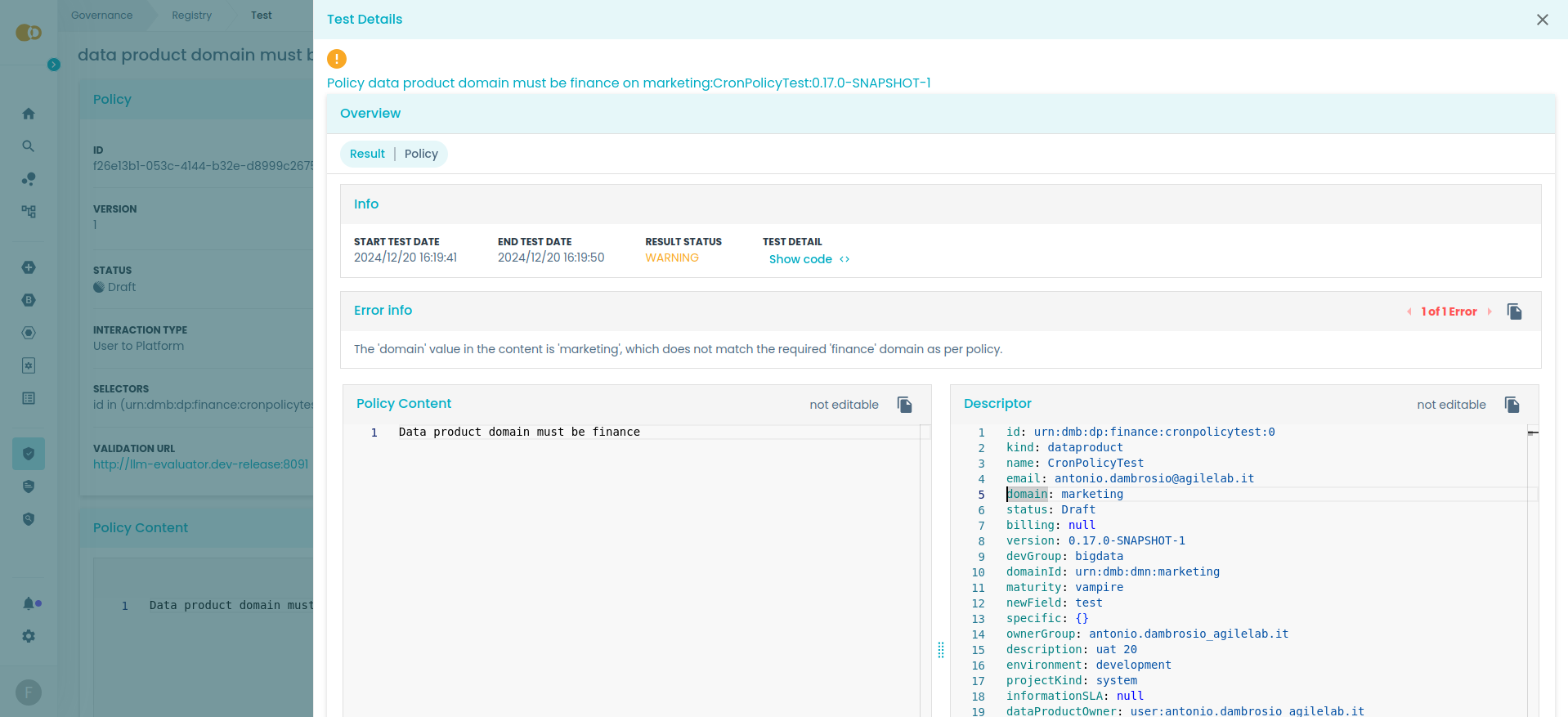
The data product domain is set to "marketing", not satisfying this policy.
Writing Effective Policies
The quality of the evaluation depends heavily on how the policy content is written. Here are some guidelines to get the best results from LLM policies:
- Be specific: instead of writing "the data product should have a valid domain", write "the data product domain must be set to one of: finance, marketing, hr".
- Keep it concise: focus on one requirement per policy. If you have multiple requirements, consider creating separate policies for each.
- Use precise language: avoid ambiguous terms. Use "must" for mandatory requirements and "should" for recommended practices.
- Test iteratively: create the policy as Draft, test it against existing resources using the test workbench, and refine the text before enabling it.
Creating an LLM Policy
When creating a policy, select LLM as the engine in the Engine Metadata step. You will be asked to provide:
- Base URL: the URL where the LLM Engine microservice is running (e.g.
http://llm-engine:8091). - Policy content: the natural language text that describes the compliance check to perform.
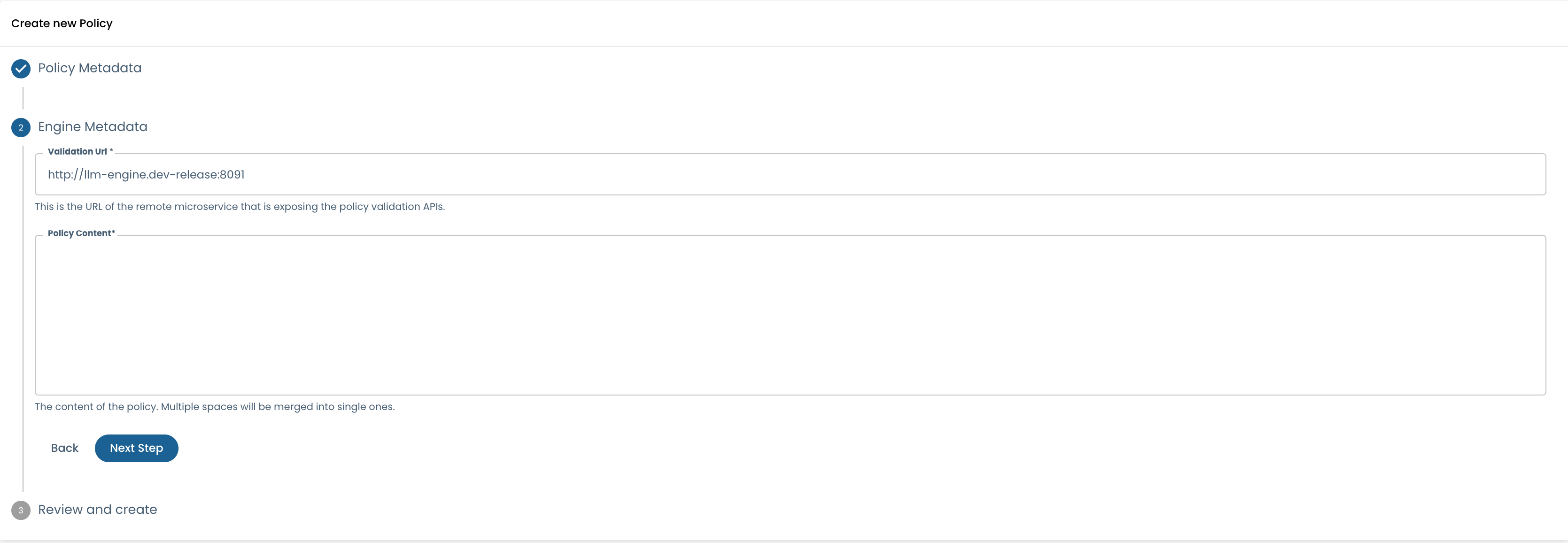
Engine metadata section when creating a policy with the LLM engine.
The base URL is pre-filled with the default value from your platform configuration. You only need to change it if you are running the LLM Engine at a different address.
LLM Engine API
The LLM Engine exposes a single endpoint for policy evaluation:
POST /v1/evaluate
The request contains the resource descriptor, the natural language policy text, the resource identifier, and the resource type:
{
  "content": "<stringified YAML descriptor>",
  "policy": "The data product domain must be set to finance.",
  "resourceId": "urn:dmb:dp:marketing:a-deployed-dp:0",
  "resourceType": "dataproduct"
}
A successful evaluation returns a result indicating whether the policy is satisfied:
{
  "satisfiesPolicy": true,
  "details": {
    "suggestion": "No changes needed."
  },
  "errors": []
}
If the resource does not satisfy the policy, the response contains errors explaining why:
{
  "satisfiesPolicy": false,
  "details": {
    "suggestion": "Change the domain from 'marketing' to 'finance'."
  },
  "errors": [
    "The data product domain is defined as 'marketing'. The expected domain is 'finance'."
  ]
}
The errors and details fields are displayed in the Witboost UI:
- errors: a list of issues the resource owner should fix in order to be compliant with the policy.
- details: additional information about the evaluation outcome, such as suggestions for how to fix the issues.
Even if the policy evaluation is a failure, the HTTP response is always successful (2XX code), since it means that the evaluation was performed correctly but the resource was not compliant. HTTP failures (4XX and 5XX codes) indicate runtime errors such as connectivity issues or misconfigured LLM credentials.
The full Open API specification for the LLM Engine is available at the Witboost Extension Points API.
Configuration
Platform Configuration
To enable the LLM engine option when creating policies, the following parameters must be configured in the platform's
values.yaml:
# inside your values.yaml
ui:
  appConfig:
    mesh:
      governance:
        agent:
          cgp:
            enabled: true
            url: http://llm-engine:8091
            endpoint: /v1/evaluate
enabled: set totrueto make the LLM option visible and selectable when creating a new policy. If set tofalse, the LLM engine will not be available as an engine choice.url: the base URL where the LLM Engine microservice is running.endpoint: the API endpoint path for evaluation (default:/v1/evaluate).
For more details, see the Configurations page.
LLM Engine Configuration
The LLM Engine microservice requires a configuration file (generator.yaml) that specifies which LLM provider and
model to use for evaluations. The engine connects to Azure OpenAI and accepts two configuration formats.
We recommend using GPT-5.2 or later deployments for the best evaluation quality.
Provider format (recommended)
The recommended format uses a flat structure with a provider field:
provider: azure_openai
endpoint: https://your-azure-openai-instance.openai.azure.com/
deployment: gpt-5.2-chat
api_version: "2024-12-01-preview"   # Optional — defaults to "2023-05-15"
| Parameter | Description |
|---|---|
provider | The LLM provider to use. Set to azure_openai. |
endpoint | The endpoint URL of your Azure OpenAI instance. |
deployment | The Azure OpenAI deployment name (e.g. gpt-5.2-chat). |
api_version | The Azure OpenAI API version. Optional — defaults to "2023-05-15". Can also be set via the OPENAI_API_VERSION environment variable. |
temperature | Controls the randomness of the LLM output. Automatically omitted for GPT-5 and later models, which do not support it. For older models (e.g. GPT-4), a value of 0.0 is recommended for deterministic evaluations. |
custom_header | Optional HTTP header name for sending the API key (e.g. for APIM gateways). |
generation_kwargs | Additional model parameters (e.g. top_p, max_retries). |
GPT-5 and later models do not accept a temperature parameter. The engine automatically detects GPT-5+ deployments
and omits temperature from the request, so you do not need to remove it from your configuration when upgrading models.
Legacy format (deprecated)
The legacy format is deprecated. It is still supported for backward compatibility — the engine automatically normalizes it at startup — but new installations should use the provider format above.
The legacy format uses class_name and a nested config block:
class_name: AzureOpenAIChatGenerator
config:
  azure_endpoint: https://your-azure-openai-instance.openai.azure.com/
  azure_deployment: gpt-5.2-chat
  api_version: "2024-12-01-preview"   # Optional — defaults to "2023-05-15"
  generation_kwargs: {}
| Parameter | Description |
|---|---|
class_name | Set to AzureOpenAIChatGenerator. |
config.azure_endpoint | The endpoint URL of your Azure OpenAI instance. |
config.azure_deployment | The Azure OpenAI deployment name. |
config.api_version | The Azure OpenAI API version. Optional — defaults to "2023-05-15". |
config.generation_kwargs | Additional model parameters. |
The API key should be provided via the AZURE_OPENAI_API_KEY environment variable.
Never store API keys directly in the configuration file. Use Kubernetes secrets and inject the key as an environment variable in the deployment.
Helm Deployment
The LLM Engine is deployed via a Helm chart. The key values to configure are:
# inside your values.yaml for the LLM Engine Helm chart

# Override the default generator.yaml configuration
configOverride: |
  provider: azure_openai
  endpoint: https://your-azure-openai-instance.openai.azure.com/
  deployment: gpt-5.2-chat
  api_version: "2024-12-01-preview"   # Optional — defaults to "2023-05-15"

# Inject the API key from a Kubernetes secret
extraEnvVars:
  - name: AZURE_OPENAI_API_KEY
    valueFrom:
      secretKeyRef:
        name: llm-engine-secret
        key: azure-openai-api-key
| Parameter | Description |
|---|---|
configOverride | Inline YAML content that overrides the default generator.yaml configuration. |
extraEnvVars | Additional environment variables to inject into the container (e.g. API keys from secrets). |
image.registry | The Docker image registry. |
image.tag | The Docker image tag. |
dockerRegistrySecretName | The name of the Kubernetes secret used to pull the image from a private registry. |