Restrict environment access with RBAC
The platform.environment.read.<env> permission determines which environments a user can see in Marketplace, Builder, and Governance. At installation or upgrade time, Witboost automatically creates one permission for each configured environment, for example platform.environment.read.production. You do not need to create these permission definitions yourself.
These permissions restrict environment visibility in the Witboost UI only. They do not block direct backend API requests.
Default environment access
For existing installations, the platform-managed All Users role applies to every authenticated user. When All Users has a platform.environment.read.<env> permission, every user can see that environment regardless of their other role assignments. This default assignment does not apply to fresh installations.
Restricting access
Environment permissions are cumulative across All Users, predefined roles, custom roles, and direct or group-based assignments. Removing a permission from one role does not restrict a user who inherits the same permission from another role.
To make an environment available only to selected users or groups:
- Remove its
platform.environment.read.<env>permission from All Users so it is no longer universally visible. - Review the predefined roles assigned to those users and remove the same permission from any role that should not provide access.
- Grant the permission to the specific predefined or custom roles that should provide access.
- Assign those roles to the intended users or groups.
For custom roles, grant only the environment permissions they need (an additive approach).
Witboost controls the All Users role's membership and metadata, but the Platform Team can add and remove its permissions in Administration > Roles & Permissions > All Users > Manage Permissions. See the 2.12 migration guide for the rollout steps.
When a user has no environment permissions
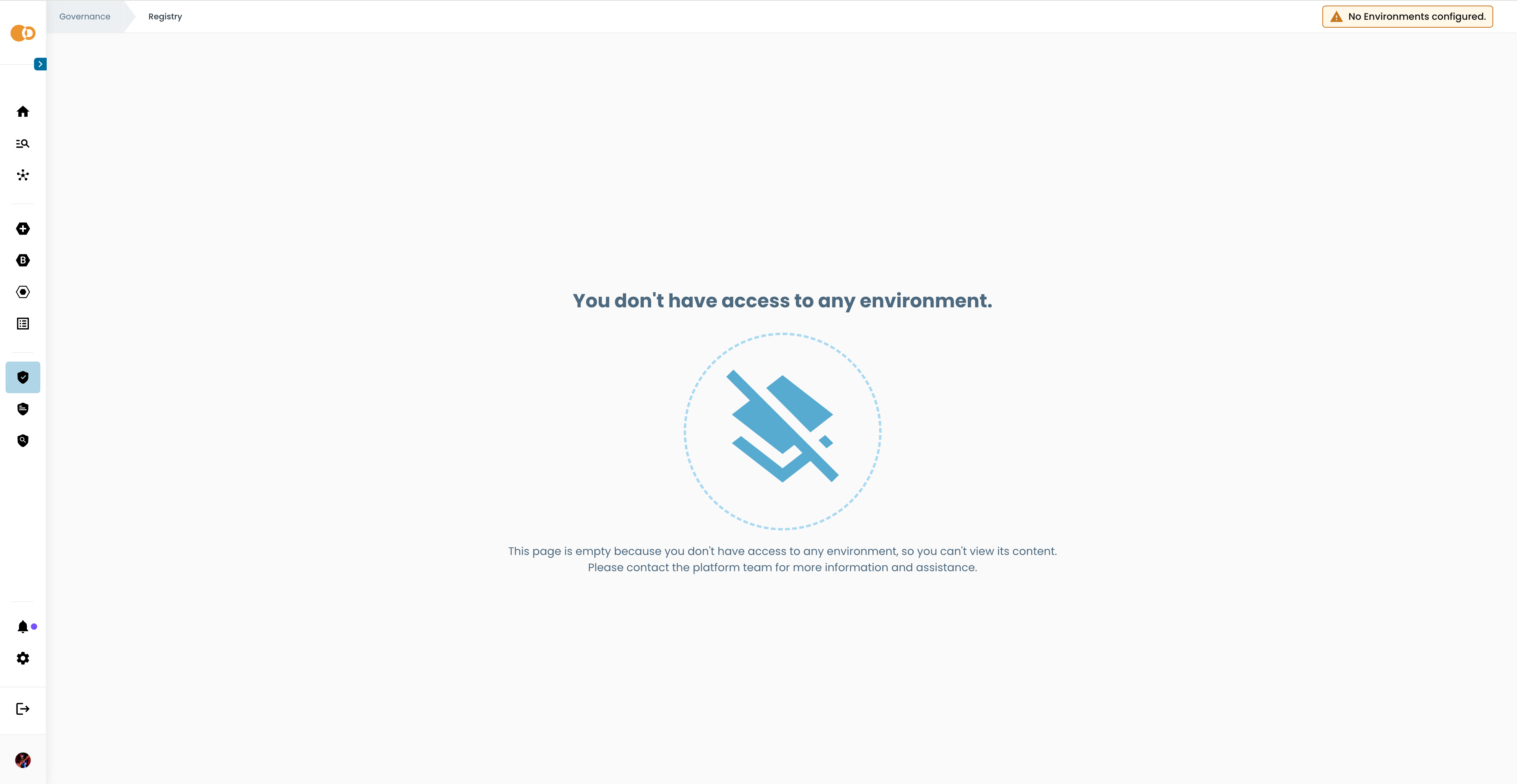
Environments may be configured, but a user with no inherited platform.environment.read.<env> permission for any of them will not see those environments in Marketplace, Builder, or Governance. If a user expects to see environments but none appear, check All Users and all roles assigned directly or through groups.
Example: production-only access
To let a group see only the production environment:
- Remove non-universal environment permissions from All Users.
- Check that no other role assigned to the group grants access to additional environments.
- Create or choose a role for the group.
- In Manage Permissions, grant
platform.environment.read.productionwithout granting the corresponding permissions for other environments. - Assign the role to the group using Add Assignments.
See Binding permissions to a role and Granting permissions to a subject for the role configuration steps.
Ensure All Users and no other role assigned to these users, directly or through groups, grants access to additional environments.
What happens if environments change?
If the platform team adds or removes environments after installation or upgrade, they must manually align the environment permissions granted to All Users and other roles with the updated environment configuration. Grant the permission for a newly added environment to the roles that should provide access to it, and remove grants for environments that are no longer configured. Manual changes are preserved across restarts.