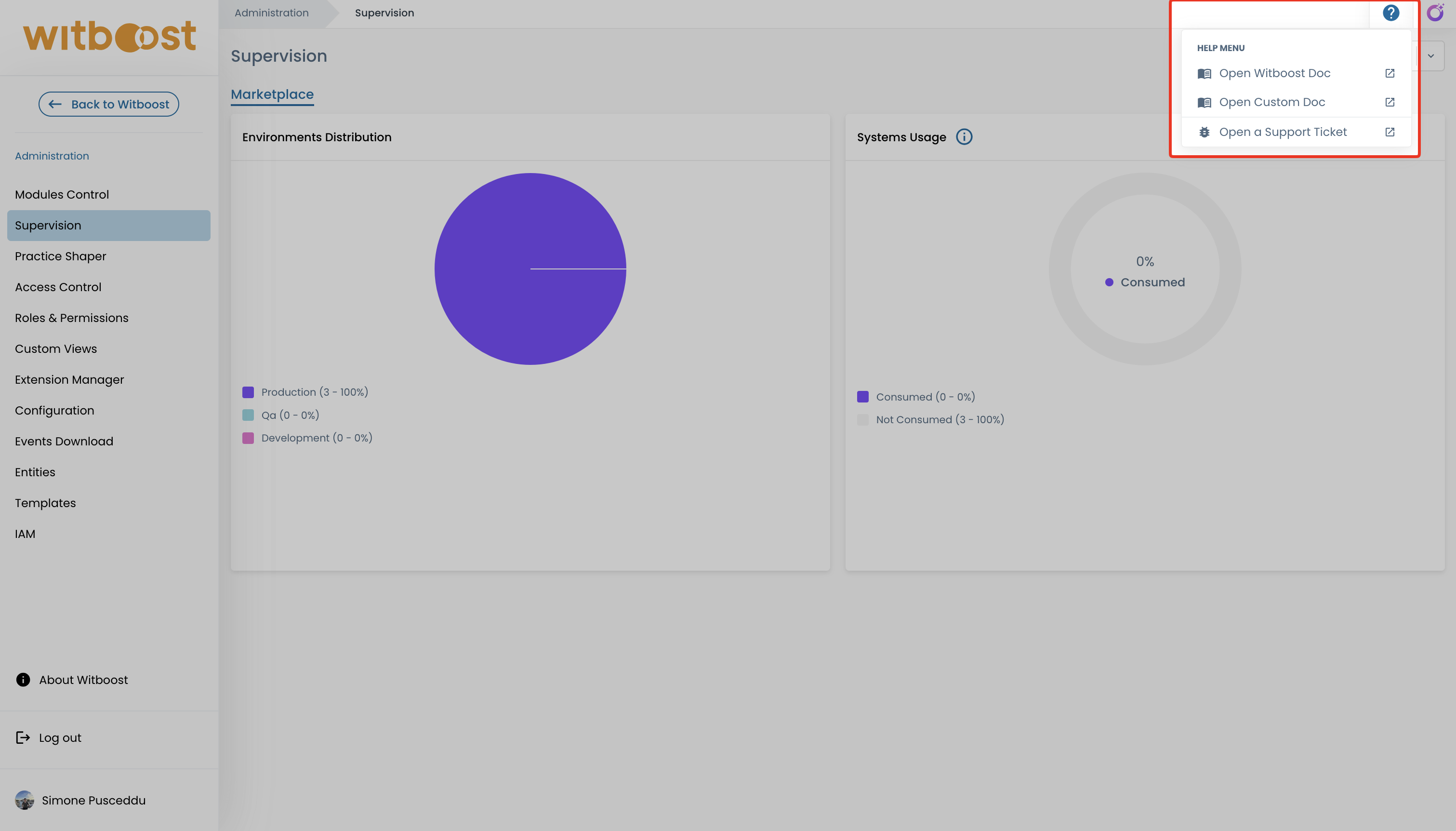
Help Links
Witboost allows platform administrators to configure a set of custom help links that appear in the help menu of the application. These links let users quickly navigate to external resources such as documentation portals, support systems, or internal wikis.
Two independent sets of links can be defined:
- User links (
items) — visible to all users - Admin links (
adminItems) — visible only to users with theplatform.settings.editpermission
Configuring Help Links
To configure help links, navigate to Administration > Configuration > Platform and click on the Help links entry. This opens the Help Links Editor, a YAML editor where you can define the links.
The configuration supports two top-level keys:
| Key | Type | Required | Description |
|---|---|---|---|
items | object[] | No | List of help links visible to all users |
adminItems | object[] | No | List of help links visible only to users with the platform.settings.edit permission |
Each entry in items and adminItems supports the following fields:
| Key | Type | Required | Description |
|---|---|---|---|
label | string | Yes | Display text for the link |
url | string | Yes | URL the link navigates to when clicked |
icon | string | No | Optional icon displayed alongside the label. Follows the same format as the value field of the Icon component in Custom Views: supports pre-defined names (e.g. deploy, cue), Material UI icons with the mui: prefix (e.g. mui:MenuBook), or external image URLs with the external: prefix (e.g. external:https://myicon.com/icon.png). |
Example:
items:
  - url: https://docs.witboost.com
    icon: mui:MenuBook
    label: Open Witboost Doc
  - url: https://your-custom-docs-url.com
    icon: mui:MenuBook
    label: Open Custom Doc
adminItems:
  - url: https://your-support-url.com
    icon: mui:BugReport
    label: Open a Support Ticket
Once saved, the configured links appear under the Help Menu in every Witboost page.