Configuration
Prerequisites
- Witty microservice must be up & running and reachable from Witboost Core;
- Docs agent microservice must be up & running and reachable from Witboost Core.
How to install Witty & Docs agent microservices is described here Installing Witty
Configuring Witty via the Administration Panel
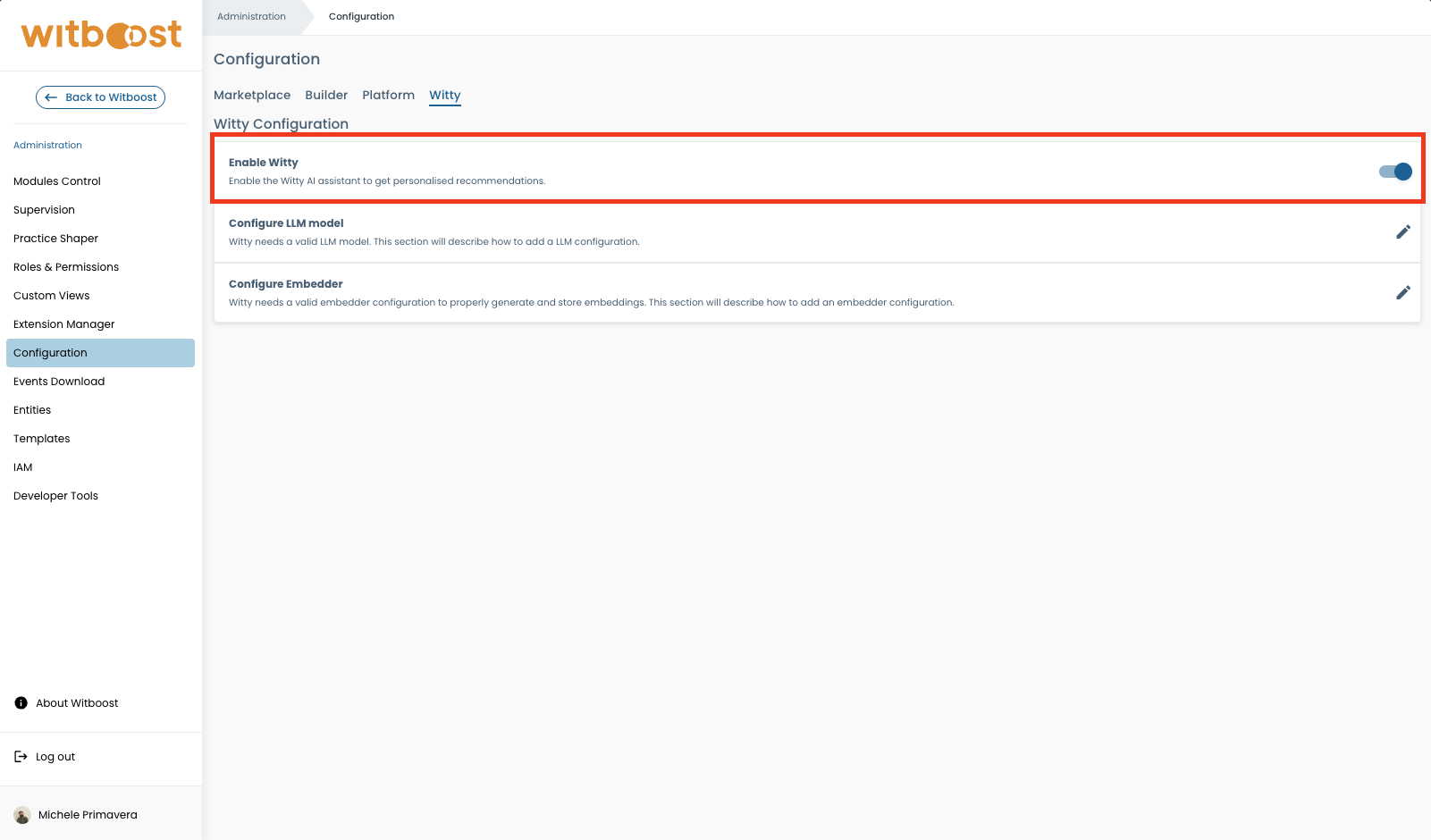
Navigate to Administration > Configuration > Witty to manage runtime AI settings without redeploying.
The Witty tab is visible only when the Witty module is enabled in your license. Access requires the platformSettingsEditPermission permission.
Enabling Witty
Witty can be enabled or disabled using the toggle in Administration > Configuration > Witty. When disabled, Witty's icon is hidden across the platform, and all Witty-related features are inaccessible. When enabled, you can configure the LLM and Embedder settings.
LLM Configuration
Witty needs a valid LLM model. The recommended way to configure the LLM model is through Administration > Configuration > Witty. In the LLM section:
- Select
azure_openaifrom the Provider dropdown (the only currently supported option). - Enter your API Key. After saving, only the last 4 characters will be visible — the key is encrypted at rest.
- Enter the Endpoint URL.
- Optionally fill in API Version, Model, Deployment, and Custom Header.
- Click Save.
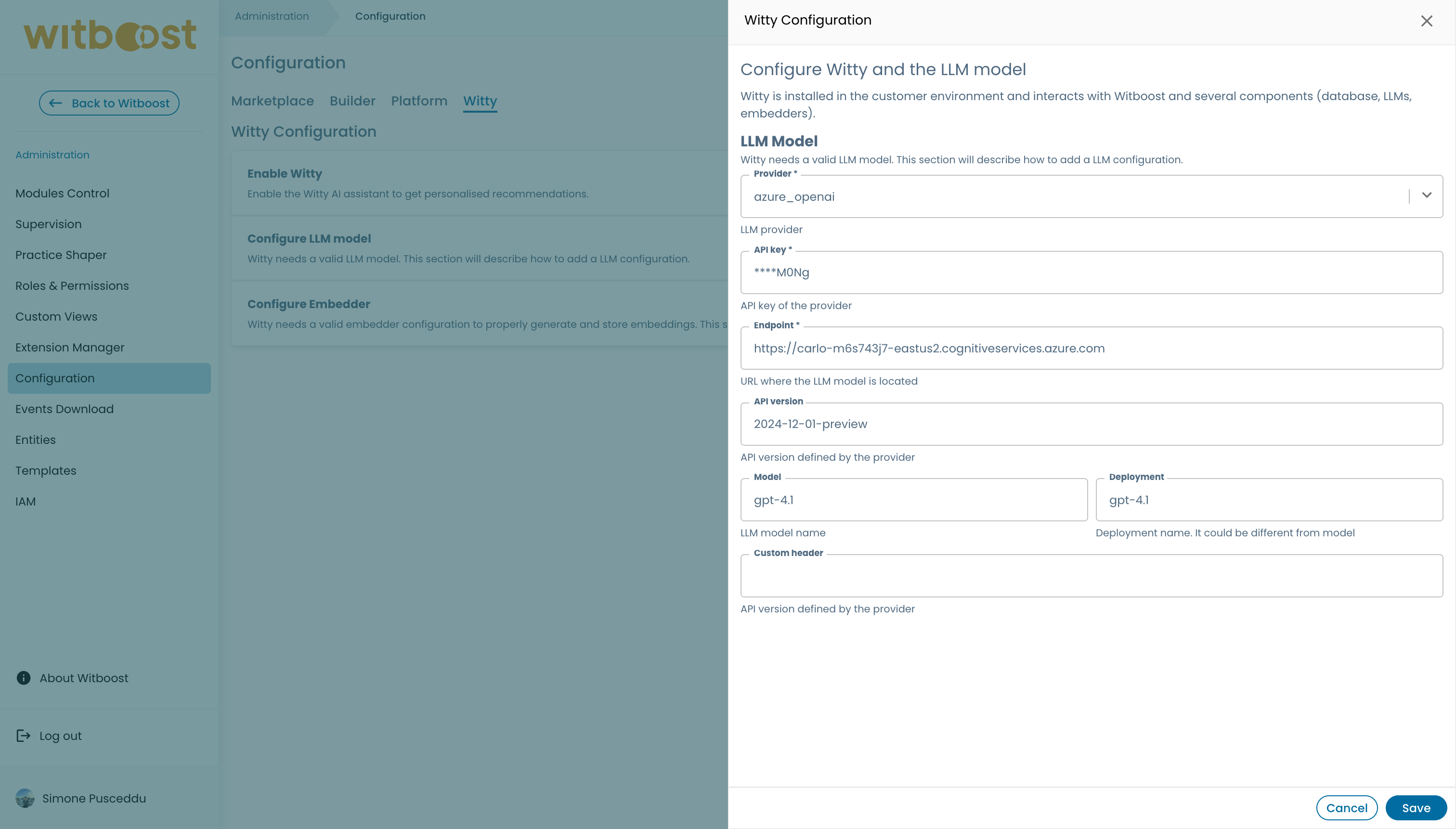
Here's an overview of the LLM configuration fields:
| Field | Required | Description |
|---|---|---|
provider | Yes | The LLM provider. Currently only azure_openai is supported. |
api_key | Yes | The API key for the provider. Encrypted at rest; only the last 4 characters are shown after saving. |
endpoint | Yes | The URL of the LLM endpoint. |
api_version | No | The API version defined by the provider. |
model | No | The model name. |
deployment | No | The deployment name, which may differ from the model name. |
custom_header | No | An optional header name for including the API key in requests to the provider. |
The LLM section can be saved independently of the Embedder section.
Witty supports models that provide OpenAI-compatible Chat Completions with function/tool calling enabled under the model’s default configuration. Models requiring the Responses API, or additional parameter changes to support tool calling, are not currently compatible.
If the LLM is not configured, Witty pods start normally. Errors will only occur at invocation time.
Configure LLM via API
For programmatic or advanced configuration management, the following APIs are available:
- GET /witty/v1/llm/config: retrieve the LLM configuration;
- POST /witty/v1/llm/config: create/edit a LLM configuration. The body is a JSON in the LLM structure seen before;
- POST /witty/v1/llm/chat: chat with LLM. The body is a JSON with this format
{
    "query": "Some text"
}
Here's an example of a LLM configuration:
{
    "provider": "azure_openai",
    "api_key": "xxx",
    "endpoint": "https://xxx.cognitiveservices.azure.com/",
    "api_version": "2025-01-01-preview",
    "model": "gpt-4.1",
    "deployment": "gpt-4.1",
    "custom_header": "X-API-Key"
}
Supported providers
Currently the available providers for LLM configuration are:
| LLM Provider | Description |
|---|---|
| azure_openai | Azure OpenAI Service |
Note: Azure OpenAI can be accessed through Azure Foundry and Azure API Management (APIM). In the first case, the
endpointfield should be the Azure Foundry endpoint, while in the second case it should be the Azure API Management endpoint. If you are using Azure API Management, you can also include thecustom_headerfield with the name of the header where the APIM subscription key is expected (e.g.X-API-Key).
Witty supports models that provide an OpenAI-compatible Chat Completions API with function/tool calling enabled under the model’s default configuration. Models that require the Responses API or additional parameter changes to support tool calling are not currently compatible.
Embedder Configuration
Witty needs a valid embedder model. The recommended way to configure the embedder model is through Administration > Configuration > Witty. In the Embedder section:
- Select
azure_openaifrom the Provider dropdown (the only currently supported option). - Enter your API Key. After saving, only the last 4 characters will be visible — the key is encrypted at rest.
- Enter the Endpoint URL.
- Optionally fill in API Version, Model, Deployment, and Custom Header.
- Click Save.
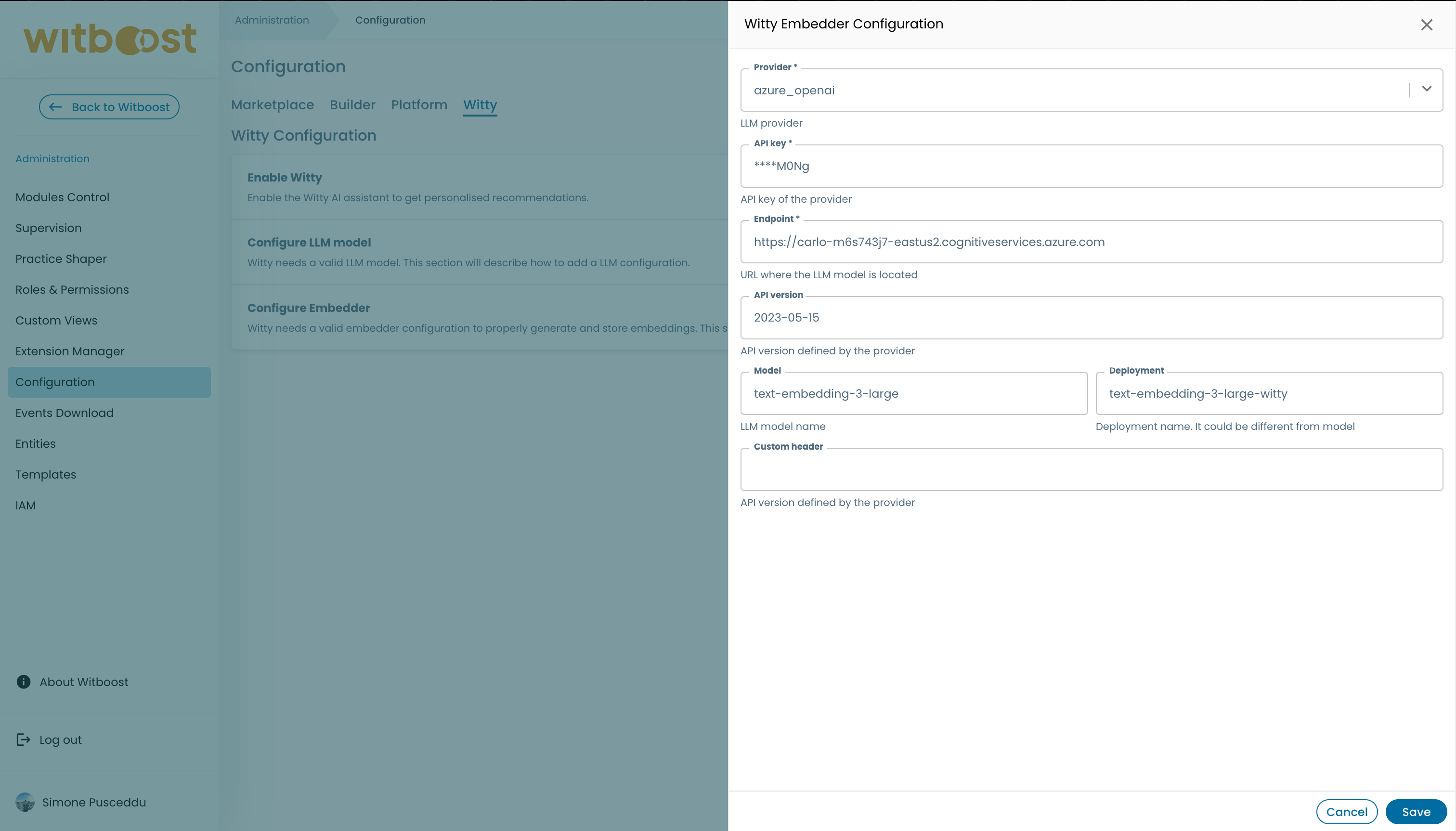
Here's an overview of the Embedder configuration fields:
| Field | Required | Description |
|---|---|---|
provider | Yes | The embedder provider. Currently only azure_openai is supported. |
api_key | Yes | The API key for the provider. Encrypted at rest; only the last 4 characters are shown after saving. |
endpoint | Yes | The URL of the embedder endpoint. |
api_version | No | The API version defined by the provider. |
model | No | The embedding model name. |
deployment | No | The deployment name, which may differ from the model name. |
custom_header | No | An optional header name for including the API key in requests to the provider. |
The Embedder section can be saved independently of the LLM section.
If the Embedder is not configured, Witty pods start normally. Errors will only occur when embedder functionality is invoked (e.g., Marketplace embedding search).
Configure Embedder via API
For programmatic or advanced configuration management, the following APIs are available:
- GET /witty/v1/embedder/config: retrieve the embedder configuration;
- POST /witty/v1/embedder/config: create/edit a embedder configuration. The body is a JSON in the embedder structure seen before.
Here's an example of a embedder configuration:
{
    "provider": "azure_openai",
    "api_key": "xxx",
    "endpoint": "https://xxx.cognitiveservices.azure.com/",
    "api_version": "2025-01-01-preview",
    "model": "text-embedding-3-large",
    "deployment": "text-embedding-3-large-witty",
    "custom_header": "X-API-Key"
}
Supported providers
Currently the available providers for Embedder configuration are:
| Embedder Provider | Description |
|---|---|
| azure_openai | Azure OpenAI Service |
Note: Azure OpenAI can be accessed through Azure Foundry and Azure API Management (APIM). In the first case, the
endpointfield should be the Azure Foundry endpoint, while in the second case it should be the Azure API Management endpoint. If you are using Azure API Management, you can also include thecustom_headerfield with the name of the header where the APIM subscription key is expected (e.g.X-API-Key).
Task API
Witty exposes two endpoints to submit a message and get a response from the agent:
- POST /witty/v1/task: creates a task and streams the response back as it is generated, using Server-Sent Events (SSE). This is the endpoint used by the Witboost chat UI;
- POST /witty/v1/task/sync: functionally equivalent, but waits for the agent to complete and returns the full response as a single JSON payload. Useful for integrations that cannot handle a streaming response.
Both endpoints accept the same request body:
{
    "message": "Some text",
    "session_id": "optional-existing-session-uuid"
}
If session_id is omitted, a new chat session is created and returned in the response.
Streaming response (/witty/v1/task)
The response has content type text/event-stream and emits the following event types:
| Event | Description |
|---|---|
status | Status updates on what the agent is doing (e.g. "Searching marketplace..."). |
thinking | Intermediate agent reasoning steps. |
token | A chunk of the streamed answer, e.g. {"content": "..."}. |
done | The stream is complete, e.g. {"session_id": "...", "title": "..."}. The title is only present when a new session was created. |
error | An error occurred, e.g. {"message": "..."}. |
Synchronous response (/witty/v1/task/sync)
{
    "message": "The full answer text",
    "session_id": "...",
    "title": "..."
}
Chat History
Witty persists chat sessions and their messages, allowing users to browse, resume, rename and delete their previous conversations, as described in the user guide.
The following APIs are available to manage sessions and history:
GET /witty/v1/sessions/me: list the authenticated user's sessions. Supportslimit,offsetandsearch(case-insensitive match on the session title) query parameters;PATCH /witty/v1/sessions/{session_id}/title: rename a session. Only the session owner can update it;DELETE /witty/v1/sessions/{session_id}: delete a session. Only the session owner can delete it;GET /witty/v1/history/{session_id}: retrieve the full message history for a session.