How to populate the Business Concept Map
Overview
The Business Concept Map in the Marketplace visualizes your organization bussiness terminology as an interactive graph with: schemes (big circles), concepts (small circles), relationships, definitions, synonyms, and linked Products.
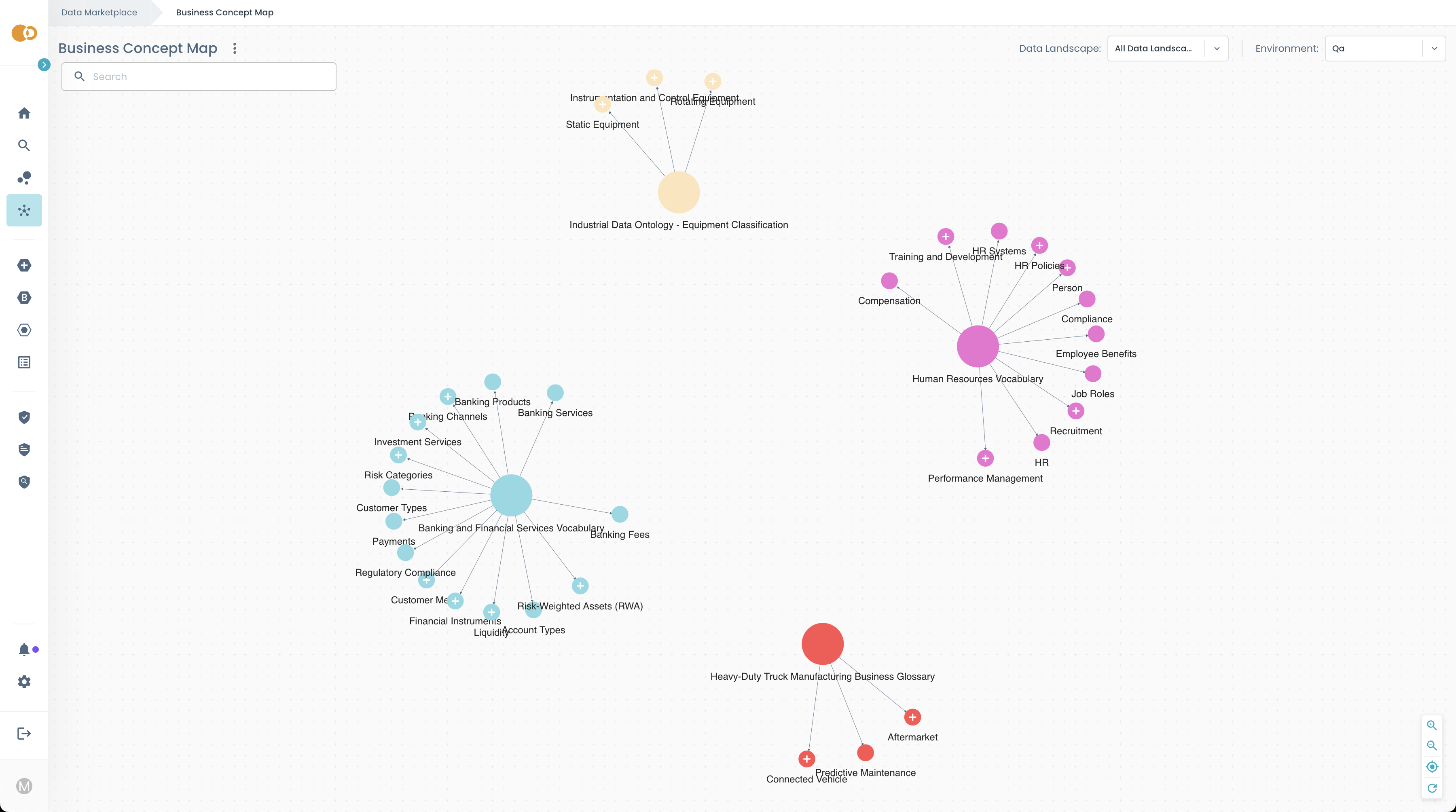
This guide explains how to provide those concepts so they appear in the Business Concept Map.
The Business Concept Map is a feature that can be enabled via Marketplace configuration.
If disabled, the Marketplace UI will not display the map.
Prerequisites
Before following this guide, make sure you understand:
Knowledge Graph Manager (KGM)
KGM is the Witboost service that stores your organization's knowledge as a graph.
The Business Concept Map retrieves concepts directly from KGM by only querying for concepts and relations expressed through the SKOS vocabulary (see below).
Learn more about: Knowledge Graph Manager (KGM)
Make sure the configured KGM base url correctly points to the KGM service.
Source Adapter
A KGM Source Adapter is a small service you build that:
- Reads your business concepts and relations from a source (a glossary, catalog, database, spreadsheet, etc.)
- Converts them into a graph expressed in the JSON-LD format
- Provides this JSON-LD to KGM so it can ingest it
If you do not know how Source Adapters work, please read:
RDF
RDF (Resource Description Framework) is the standard data model used to represent information as a graph of resources and relationships.
In RDF, data is expressed as triples:
- Subject — the resource being described
- Predicate — the property or relationship
- Object — the value or another resource
Example (conceptually):
Concept ── hasDefinition ──► "A business term description"
RDF is the foundation on which vocabularies like SKOS (see section below) are built.
While KGM can ingest and store knowledge graphs expressed with any RDF-compliant vocabulary, the Business Concept Map relies on RDF semantics to traverse concepts, schemes, and relationships as a connected graph.
SKOS
SKOS (Simple Knowledge Organization System) is a widely adopted vocabulary for modeling glossaries and taxonomies via the RDF
The Business Concept Map currently uses SKOS fields to interpret and visualize concepts, meaning your Source Adapter should express concepts using SKOS if you want them to appear in the map.
Learn more about SKOS on the official SKOS reference website
Supported Vocabularies
The Business Concept Map is designed to work with concept graphs expressed in RDF.
KGM can ingest and store concepts using any RDF vocabulary.
However, the Business Concept Map currently interprets concepts using the SKOS vocabulary to determine:
- concept labels
- definitions
- synonyms
- broader/narrower hierarchy
- related concepts
- scheme membership
Future releases may support additional vocabularies or custom mappings.
How to Provide Concepts to the Business Concept Map
The steps below assume SKOS because it is the vocabulary the Business Concept Map interprets today.
To make your business concepts appear in the Business Concept Map, your organization must create and register a KGM Source Adapter. The Source Adapter is responsible for supplying the SKOS JSON-LD concept graph to the Knowledge Graph Manager.
A complete process includes:
-
Create a Source Adapter
Implement a service that retrieves your business concepts from their authoritative source (glossary, spreadsheet, DB, catalog) and converts them into a JSON-LD graph expressed using the SKOS vocabulary. -
Expose the JSON-LD graph
Your Source Adapter must expose an endpoint that returns the full SKOS concept graph in JSON-LD format. -
Register the Source Adapter in KGM
Once implemented, register your Source Adapter in the KGM configuration so KGM can ingest the SKOS concepts and make them available to the Business Concept Map. -
Verify ingestion
After registration, verify that the Source Adapter ingests correctly by checking that KGM contains your SKOS concepts through its SPARQL and search endpoints.
Following these steps ensures that the SKOS concept graph becomes available to the Business Concept Map for browsing, searching and linking Products.
The steps described in this section refer to the ingestion mode, where KGM ingests and stores the SKOS concept graph provided by your Source Adapter.
It is also possible to run the Business Concept Map in passthrough mode, where the Business Concept Map does not query for ingested concepts into KGM but instead sends all SPARQL and Search queries directly to a specific Source Adapter.
To enable passthrough mode, configure the KGM base URL to point to:
<base-kgm-url>/passthrough/<sourceId>
All Business Concept Map operations (SPARQL exploration, search, related concepts lookups) will then call that Source Adapter live, without ingestion.
What the Business Concept Map displays
The visual elements composing the Business Concept Map are:
-
Concept Schemes — big circles
Examples: HRVocabulary, BankingVocabulary, TruckManufacturingGlossary
A scheme represents a collection of related business concepts.
-
Concepts — small circles
Examples: Performance Management, Recruitment, Liquidity
These are the business concepts inside each scheme.
-
Relationships — lines
- Hierarchy lines show broader/narrower relationships between concepts
- Related lines show non-hierarchical associations between concepts
-
Concept details panel
When you click a concept, the left panel shows:
- name
- definition
- synonyms
- parent scheme
- related concepts
- related Products
How the Business Concept Map interprets SKOS
The Business Concept Map queries the KGM, through its SPARQL endpoint, to fetch SKOS concepts and relations and render them as follows:
| Visual Element | SKOS Field | Meaning |
|---|---|---|
| Big dot (scheme) | skos:ConceptScheme | A group/vocabulary |
| Small dot (concept) | skos:Concept | A business term |
| Node label | skos:prefLabel | Main name shown in the graph |
| Definition | skos:definition | Explanation shown in details panel |
| Synonyms | skos:altLabel | Shown in details panel |
| Hierarchical lines | skos:broader / skos:narrower | Hierarchical structure |
| Related lines | skos:related | Non-hierarchical links |
| Concept scheme membership | skos:inScheme | Determines which scheme a concept belongs to |
| Related Products | Product descriptor match | Products in the Marketplace whose business concepts match skos:prefLabel of one or more concepts in the graph |
Minimal SKOS JSON-LD Example (Copy & Adapt)
Below is a complete SKOS example that demonstrates everything needed for the Business Concept Map:
- multiple Concept Schemes (the big circles in the graph)
- multiple Concepts
- hierarchical relationships (
skos:broader/skos:narrower) - related concepts across different schemes (
skos:related) - synonyms (
skos:altLabel) - definitions (
skos:definition) - correct SKOS JSON-LD structure using a clean
@context
You can use it as a template and replace labels/IDs with your own.
For relationship fields that point to another node, use JSON-LD node references such as { "@id": "https://example.com/schemes/hr" } rather than plain strings.
JSON-LD Example
{
  "@context": {
    // Define the skos prefix
    "skos": "http://www.w3.org/2004/02/skos/core#"
  },
  "@graph": [
    /* ------------------------------
       SCHEME 1: HRVocabulary
       ------------------------------ */
    {
      "@id": "https://example.com/schemes/hr",
      "@type": "skos:ConceptScheme",
      "skos:prefLabel": "HRVocabulary"
    },

    {
      "@id": "https://example.com/concepts/performance-management",
      "@type": "skos:Concept",
      "skos:prefLabel": "Performance Management",
      "skos:altLabel": ["Employee Performance"],
      "skos:definition": "Processes to ensure employee goals align with organizational objectives.",
      "skos:inScheme": { "@id": "https://example.com/schemes/hr" },
      "skos:narrower": [
        { "@id": "https://example.com/concepts/employee-engagement-survey" }
      ],
      "skos:related": [{ "@id": "https://example.com/concepts/liquidity-risk" }]
    },

    {
      "@id": "https://example.com/concepts/employee-engagement-survey",
      "@type": "skos:Concept",
      "skos:prefLabel": "Employee Engagement Survey",
      "skos:broader": {
        "@id": "https://example.com/concepts/performance-management"
      },
      "skos:inScheme": { "@id": "https://example.com/schemes/hr" }
    },

    /* ------------------------------
       SCHEME 2: BankingVocabulary
       ------------------------------ */
    {
      "@id": "https://example.com/schemes/banking",
      "@type": "skos:ConceptScheme",
      "skos:prefLabel": "BankingVocabulary"
    },

    {
      "@id": "https://example.com/concepts/liquidity-risk",
      "@type": "skos:Concept",
      "skos:prefLabel": "Liquidity Risk",
      "skos:definition": "The risk that a company may not be able to meet short-term financial obligations.",
      "skos:inScheme": { "@id": "https://example.com/schemes/banking" },
      "skos:narrower": [
        { "@id": "https://example.com/concepts/intraday-liquidity" }
      ],
      "skos:related": [
        { "@id": "https://example.com/concepts/performance-management" }
      ]
    },

    {
      "@id": "https://example.com/concepts/intraday-liquidity",
      "@type": "skos:Concept",
      "skos:prefLabel": "Intraday Liquidity",
      "skos:broader": { "@id": "https://example.com/concepts/liquidity-risk" },
      "skos:inScheme": { "@id": "https://example.com/schemes/banking" }
    },

    /* ------------------------------
       SCHEME 3: EquipmentVocabulary
       ------------------------------ */
    {
      "@id": "https://example.com/schemes/equipment",
      "@type": "skos:ConceptScheme",
      "skos:prefLabel": "EquipmentVocabulary"
    },

    {
      "@id": "https://example.com/concepts/rotating-equipment",
      "@type": "skos:Concept",
      "skos:prefLabel": "Rotating Equipment",
      "skos:definition": "Mechanical equipment that rotates during operation, such as turbines or pumps.",
      "skos:inScheme": { "@id": "https://example.com/schemes/equipment" },
      "skos:narrower": [
        { "@id": "https://example.com/concepts/industrial-pump" }
      ]
    },

    {
      "@id": "https://example.com/concepts/industrial-pump",
      "@type": "skos:Concept",
      "skos:prefLabel": "Industrial Pump",
      "skos:broader": {
        "@id": "https://example.com/concepts/rotating-equipment"
      },
      "skos:inScheme": { "@id": "https://example.com/schemes/equipment" }
    }
  ]
}
What this example covers:
- Three schemes → three large circles in the graph:
- HRVocabulary
- BankingVocabulary
- EquipmentVocabulary
- Hierarchy (broader/narrower) inside each scheme:
- Performance Management → Employee Engagement Survey
- Liquidity Risk → Intraday Liquidity
- Rotating Equipment → Industrial Pump
- Cross-scheme related concepts:
- Performance Management ↔ Liquidity Risk (this creates a cross-scheme line in the graph)
- Concept details such as synonyms and definitions:
skos:altLabelskos:definition
- Scheme membership via
skos:inSchemewhich determines which "big dot" each concept appears under.
You can build your actual business concept map by modifying this example and returning the resulting JSON-LD from your Source Adapter.
How Search works in the Business Concept Map
The search bar in the Business Concept Map allows users to find concepts by typing natural language keywords.
Search results come directly from the KGM Search API.
For a Concept to appear in search results, two conditions must be met:
1. The Concept must contain searchable text
KGM indexes only literal fields.
For SKOS, this means you should provide at least one of:
skos:prefLabel(required)skos:altLabel(synonyms)skos:definition(free-text description)
These fields are what users search over.
2. Your platform configurator must tell KGM which SKOS fields to index
KGM's search index is configurable.
To support Business Concept Map search, the configurator must enable indexing for the following SKOS predicates:
http://www.w3.org/2004/02/skos/core#prefLabelhttp://www.w3.org/2004/02/skos/core#altLabel
If they are not included in KGM's search configuration, the Concept Map search bar will not find your concepts, even if they are shown in the graph.
Refer to the KGM Configurations Section to understand how to correctly setup search predicates.
What Search Does
When a user types a query:
- The Concept Map sends the query to KGM's
/searchendpoint - KGM returns a list of matching Concept IRIs (Internationalized Resource Identifiers), ranked by relevance
- For each IRI, the Concept Map loads the Concept's SKOS metadata
- The UI highlights or displays the matching Concepts
This makes it possible to discover Concepts without knowing their exact wording.
Best practices to make Concepts easily searchable
- Always include a clear
skos:prefLabel - Add synonyms using
skos:altLabel - Avoid cryptic or internal-only naming
- Ensure SKOS labels reflect what Product teams will use in descriptors (which also improves Product linking)
Search works best when Concepts are written in natural, business-friendly language.
How Products and Consumables are linked to Concepts
The Business Concept Map can display Products and linked Consumables that are associated with a selected Concept.
Before proceeding with this topic make sure you understand How Product developers integrate their Products with the Business Concept Map
Products and Consumables are linked to Concepts through exact text matching between:
- the Business Concepts declared in a Product descriptor, including component descriptors (e.g.
Performance Management,HR) - the Concept's preferred label (
skos:prefLabel)
How it works
When a user selects a Concept and clicks Show Related Products in the details panel:
- The Business Concept Map looks for Products and linked Consumables in the Marketplace whose descriptor contains business terms.
- It compares each business term with the Concept's
skos:prefLabel. - Every Product or Consumable whose term matches exactly the Concept's preferred label is displayed as related to that Concept.
This allows users to quickly discover which Products and Consumables are connected to a business meaning, and ensures consistent alignment between business terminology and technical assets.
Troubleshooting
These checks refer to SKOS fields, which the Business Concept Map uses for visualization.
Use this section to diagnose why concepts, schemes or relations may not appear in the Business Concept Map.
Concept scheme is not shown (big dot missing)
Possible causes:
- The scheme is not defined as
@type: skos:ConceptScheme - The scheme has no
skos:prefLabel
A concept is missing from the graph
Possible causes:
- Missing or incorrect type (must be
@type: skos:Concept) - Missing
skos:prefLabel - The concept is not linked to any scheme via
skos:inSchemeor any parent concept viaskos:broader
Hierarchy lines do not appear (no parent/child links)
Possible causes:
- Missing
skos:broaderorskos:narrower - The relationship references the wrong concept ID
Related lines between concepts do not appear
Possible causes:
- Missing
skos:related - Related concept ID is incorrect or not present in the graph
Definition not shown in the left panel
Possible cause:
- Missing
skos:definition
Synonyms not shown
Possible cause:
- Missing
skos:altLabel
Concept appears but is not found via search
Possible causes:
- The concept has no textual fields (e.g., label, synonyms, definition)
- Your KGM configuration is not indexing the SKOS properties you use (ensure the configurator has enabled indexing of
skos:prefLabelandskos:altLabel)
A Product or Consumable does not appear as related for a business concept
Possible causes:
- The Product or Consumable descriptor contains business concepts that do not exactly match a concept's
skos:prefLabel - The Product or Consumable descriptor is missing the business concepts
- The concept's preferred label is misspelled or inconsistent
- The Product or Consumable is not published in the Marketplace in the selected Data Landscape and environment
Concept appears under the wrong scheme
Possible causes:
- Incorrect value in
skos:inScheme - The scheme's
@idwas mistyped
If issues persist, review your JSON-LD using the official SKOS reference or validate your JSON-LD.